Showing posts with label Protection of PC's. Show all posts


Inkscape

Vectors marked the beginning of the evolution of graphics for the Web 2.0 generation. Almost every button and rendered image an Internet traveler sees on the web these days is a vector image drawn with expensive professional software like Adobe Illustrator or CorelDraw. For non-designers looking to venture into the vectorizing sphere of the World Wide Web, we suggest Inkscape, an open source vector graphics editor with the same tools and resources as other drawing applications.


Off the bat, Inkscape impresses —unlike other open source freeware, Inkscape actually supports the W3C standard Scalable Vector Graphics (SVG) file format and incorporates SVG features like markers, clones, and alpha blending, as well as a streamlined interface that does not lag with every mouse click. The program itself is a bit of a hefty download, as this is not a light app. The toolbar interface includes medium sized icons with rollover descriptions for easy learning and every action is smooth and fluid. And, if you get stuck, Inkscape’s main site also includes tutorials in a variety of languages, so there’s no need to feel intimidated by the blank palette laid out on your desktop. Use Inkscape to create icons, design web pages, web buttons, and your own free-hand vector art.

Open source freeware may take awhile to finally catch on and become as all-inclusive and capable as our paid application counterparts, but for the graphic design world, it’s great to get a fresh start with something that is easy to use and supports the open source community’s efforts to make programs like these accessible to everyone, regardless of income bracket or computer abilities.

Download Inkscape here


DFI Hybrid Motherboard Runs Two Systems at Once

Mainboard maker DFI has a rather interesting product on the way. The upcoming Hybrid P45-ION-T2A2 motherboard is capable of running two computers on a single board. It supports both a high performanceP45/LGA775 based systems, and a low power Atom/Ion based system.

They include a small external button assembly that can be used to switch on the fly between platforms. The two platforms can both be run at the same time, or you can shut down the one you aren’t using. The back panel is a bit confusing. There are some shared ports as well as dedicated ports. It has a block of four shared USB ports that are available to both systems. The audio and DVI ports are also shared. Each system has a dedicated set of USB ports and an Ethernet jack as well. The Ion chipset on the Atom side has its own dedicated HDMI port for some low-wattage HD video action.

Overall, this is a terribly impressive feat of engineering. Watch the video at the link to get the full effect. The possibilities for true multitasking are a bit staggering. Imagine encoding video on the LGA775 platform while outputting HD video with the Ion from the same box.

How to Solve the Boot Camp Disk Error
Press Any Key To Restart Probem

Here is the Solution to the Boot Camp "Disk Error Press Any Key To Restart"

Boot Camp is a program that will help you to install Microsoft Windows on your Mac with just a few clicks. However, it took me three days to figure out how to do it.

On this page you will find the solution to the "Disk Error, Press Any Key To Restart" problem a lot of boot camp users seem to encounter. I battled with this for 3 days until I finally found the solution.

Background:

The "Disk Error, Press Any Key To Restart" message appears after you have installed windows XP and wait for your Mac to boot into Windows for the first time.

The Problem:

The reason this message appears is that Windows doesn't recognize the file system on the partion where you installed Windows XP.

Boot Camp pre-formats the partion when you first decide how big partion you want. You know the screen where you can choose 32GB or use the slide to determine how big partion you want.

Then when you are running the windows installer (who takes forever to load), the installer determin the partion Boot Camp made as FAT32. Here's the problem. You have to format the Boot Camp partion using the Windows Installer. If you don't do this, Windows will be installed on a file system it doesn't recognize and the "Disk Error Press Any Key To Restart" will appear when the installer is finished and try to boot into Windows.

How To Format The Partion Using The Windows Installer:

Here's where I got stuck and searched for an answer for 3 days before finding out how to do it.

When using the windows installer, you should be given the option to format the file system before windows is being installed. This is not always the case..

Appearantly there are different versions of the Windows Installer Software. Some gives you the option while others just goes ahead and install Windows without asking you if you want to format the partion first.

So the option to format the partion to either FAT32 or NTFS file system, depends on which type of Windows CD you have.

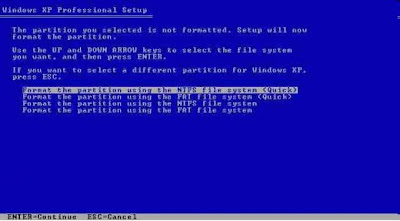
If you already have the option to format the file system before installing Windows, then the fix is easy. Simply choose to format the partion to either: FAT32 or NTFS.

The screen should look like the one below.. You will have a fifth choice which says something like: "Leave the partion as it is" DO NOT CHOOSE THIS OPTION!

You have to format the partion to either FAT32 or NTFS. If you choose FAT32, you will be able to both read and write to the partion. If you choose NTFS, you will only be able to read the partion.

What Should You Do If You Don't Have The Option Format The Partion In The Windows Installer

This is what happened to me.. I didn't get the chance to format the file system after I choosed which partion to install Windows on. The installer just went on and installed directly, and eventually I got the "Disk Error" messsage.

The fix for this is to obtain a different Windows Installer CD which have the option to format the partion.

Now the question arise.. Which Windows CD do you need?

I didn't have the the time or the money going out and buying every kind of Windows CD, just to find the right one. I already have bought a copy of Windows and I didn't want to buy another one.. So I asked a friend, (who uses Windows) to download one from a torrent site..

Now, after a lot of testing he finally found a CD that offered the format option.

I don't know if I'm allowed to link to a torrent site, but the name of the windows CD is: "Windows XP Professional SP2 Integrated Sept 2008" Just do a search for it on google and you should be able to find it. Once you find it then burn it with a program that allows you to burn CD images (ISO) and you have yourself the right CD.

You can also try to buy a new copy of Windows XP, but I can't tell you which one to buy.. =(!

I hope this helps any problem you have with Boot Camp. Below are some links that will help you even further on how to successfully install Windows XP on your MAC.

How to Format Hard Drive and Install Windows Operating System

FORMAT HARDDISK/ HARDDRIVE

Depending on whether you are formatting your master hard drive or slave hard drive the ways of formatting will differ.
To format a Slave Hard drive (Not the hard drive with your current Operating System) you can simply format the drive in two ways, these methods are

1. Simply go into My computers then right click the specific Hard drive you wish to format then simply click Format. From here you can select the format type Fat 32 or NTFS ( NTFS the most common these days as its much faster than Fat 32)

Its also best to click the quick format option as this will dramatically reduce the time it will take to format the Drive. Remember when using this method you must close all applications and files that are being run the computer from that drive otherwise you will not be able to proceed with the format.

2. The next way is to format your hard drive via command prompt. To enter command prompt simply click start then run and enter “cmd” (without the “”) this will then bring up the command line. You can now format from here by simply typing format followed by the drive letter. E.g Format C:/

The next method is for formatting your primary or master drive and the best way to do this is to do it as a part of your windows installation. I will cover the formatting of the hard drive along with the installation of windows O/S below.

Format Hard disk and Install Windows Operating System

Steps

1. The first step is to enter your computers BIOS. To do this when your computer is booting up it may ask you if you wish to enter setup or bios. The most common key to enter your setup/bios is DEL or F1. It may differ depending on what sort of motherboard you have just make sure you look out for the alert to find the appropriate key. If you cant seem to catch the key or if the screen flashes on too quick try pressing the Pause Break key and this will pause the boot up screen for you.

2. The next step is to change the boot up options for your computer. Depending on your motherboard it will be in a different location but it should be quite easy to find with a little searching. When you find it simply change the boot up priority on your computer so that the number 1 priority is to boot from CD or DVD ROM Drive.

3. Once you have setup your boot up priority and saved and exited your BIOS, its time to put your Windows CD into your CD/DVD rom drive and wait for it to do its thing and boot up. You may be presented with an option “If you wish to boot from the CD press any key” where you should press a key for the windows cd booting process begins.

4. Once the windows CD has booted up select from the Menu install Windows. From this point you can choose where about you want to install your operating system files. When starting from scratch the easiest thing to do is to delete all the partitions and start from the beginning. Once you have created the partition sizes you would like (e.g. a 80GB hard drive into two 40GB partitions.) you can select on which partition to install windows. Its always recommended to install windows onto a partition incase one of the partitions fails the other one can be used to retrieve backup data.

5. Now select the type of format FAT 32 or NTFS (NTFS recommended) and once you’ve pressed enter Windows will pretty much take over the rest. You will have to answer a few prompts along the way (admin name, passwords, network settings etc) but that’s about it. The installation of windows usually takes no longer than an 120 minutes , the time taken will depend on how much memory you have, hard drive space and cpu speed.

How To Totally, Completely Remove Spyware


Got the feeling that someone's been watching your every move? Well, maybe you've been watching too many crime dramas on television ... but maybe the idea isn't as far-fetched as some might be telling you. After all, if you use your computer on a regular basis, there's a good chance that you've been affected by Spyware. No, it's not quite the same thing as having a Peeping Tom crawl up to your window as you sleep, but spyware can cause serious problems to your computer and threaten the privacy of your online life.

So, how do your protect yourself? Here is a guide to the best tools out there for completely removing spyware from your computer.

Start over

The best tool that you have for getting rid of any spyware that might be on your computer is to simply start over. Save all of your important files and then use the nifty little disks that came with your computer to delete everything and start again. This is good for your computer anyway, because it puts things back the way they were before you start fragmenting files and creating problems for yourself.

Buy anti-Spyware programs

They don't cost that much money and they're well worth it if you get good ones that actually remove all spyware from your computer. Some of the top anti-spyware include Spy Sweeper and Spy Doctor.

Use free anti-Spyware programs

SpyBot and AdAware are two of the most popular free download programs. However, you should be careful when using these - or any other free software that advertises itself as being anti-spyware. Spyware itself can sometimes be hidden in the programs that are supposed to erase it. Do your research and stick with the known names, downloaded from sites that you trust (such as the main site for the program or a commonly used download site such as Download.com.

Mingle

No, don't go out and meet other people with concerns about Spyware. Mingle the systems that you're using to check for spyware. You can use a standard low-cost anti-Spyware program in conjunction with a free Spyware download program to make sure that you're actually completely removing ALL of the Spyware on your computer, not just that which is caught by one system.

Think preventative

You wouldn't leave the door to your house unlocked while you were gone, would you? Don't leave your computer open to problems. Use anti-virus protection, be smart about what you download and use on your computer and run scans regularly to make sure that you're getting rid of Spyware before it spreads.

It IS possible to completely remove all Spyware from your computer. Using simple, commonly used programs is a great method of doing this. These programs will remove the Spyware and prevent more problems from cropping up in the future. But if this fails to remove your Spyware, you can always consider the option of starting over with a refreshed system.

Posted by ravindaran | 2:46 PM | | 0 comments »

Easy steps to protect your PC or Laptop

Every time we log into the internet, we constantly worry about our computers getting infected by some malicious virus or some one hacking into our PC or laptops to steal our personal information.Installing anti-virus software programs on your computer or laptop is very important if you want to safeguard your computer from worms and viruses.Most programs now include real-time antivirus protection and additonal spyware protection.I am about to share basic steps to protect your PC or laptop while you are using internet.We all know that most viruses and malicious spyware or malware travels through two ways only. First, the most obvious way is through internet by web-surfing,using IMs (instant messenger),emails and hacking. Secondly, those computers and laptops do not have access to internet,it gets infected through flash drives or commonly known as portable drives.

Let us see how an antivirus/anti-spyware/malware works,

These software programs uses two different ways to detect viruses :

* Examining files to look for known viruses by means of a virus dictionary.
* Identifying suspicious behavior from any computer program which might indicate infection.

The spyware removers software is designed to detect and remove spyware, adware, and other malware such as keyloggers, rootkits, Trojan horses, and browser hijackers. Many anti-spyware software programs can also detect and eliminate few computer viruses.

A Firewall basically works as a gate-keeper. Firewalls enforce a set of rules that determine which information is allowed to pass or restricted and they all are trying to block access based on some set of rules.You can also set rules and customize settings just like instructing your gate-keeper which person to deny or allow pass the gate.

Most of us do not wish to spend so much money on buying antivirus and any kinds of security software programs that is out on the market,but guess what?? If you want good protection then it is possible to get some security software programs with out spending a single dime on them.We know them as freeware software programs and they are good at keeping your PC or laptop safe.

Installing an antivirus software program on your computer will never be enough, you need other protections as well because antivirus programs can not cover all bases and firewall program can not filter out cookies. Therefore, you have to take three-four steps to setup a full protection for your computer or laptop.

1st. Install Antivirus.

2nd. Install Firewall.

3rd. Install Spyware removal tool.

4th. Install Malware removal tool.

I have tested almost every freeware security software available at the moment and I am about to name the best free ones I have found so far and remember, they all have manual/auto update option available do not forget to update them regularly to keep your security software programs updated. Here are the some free security software programs to safe guard your PC or laptop.

Free antivirus software programs:

AVG Anti-Virus Free Edition 8.5.374

Avira AntiVir Personal 9.0.0.403

Avast Home Edition Free 4.8.1335.90414

Free Firewall software program:

ZoneAlarm 8.0.065 (It alerts you when they have updates available and you need to download and install Microsoft Hotfix Package [KB943232] to use this firewall software and once again this update is also free ).

Free Spyware software program:

Spyware Blaster.

Ad-Aware Anniversary Edition.

Free Malware software program:

Malwarebytes Anti-Malware 1.38

The above is a greatly simplified introduction to keep your PC and laptop safe from intruders and viruses.If you have any question, please leave it on the “comments” section and I will try to answer them. Thank you.